AI


That’s how the Odyssey might have opened if it were about Muse, Meta’s new AI agent. For now, the agent is available only as an iOS, Android, or macOS app and on the web. Even so, it’s already caught on: according to Meta’s official figures, Muse had been downloaded more than 10 million times by October 21.
The agent can do a lot: read your conversations and calendars, remind you about meetings and tasks, reply to messages and emails, track your spending, make purchases, search the web, generate content, and much, much more. In short, a full-blown concierge service for the chronically busy. Muse’s creators have admitted they drew heavily on the headline-grabbing AI agent OpenClaw, which researchers coincidentally found full of serious security holes.
But soon after launch, the bad news about Muse started piling up. First, a journalist discovered that the agent had gotten into his conversations without explicit permission. Around the same time, a researcher found a vulnerability that let an attacker take control of Muse and act on the owner’s behalf. And then it turned out that the calls the AI was supposedly making were actually being handed off to… human operators.
We look at how all this could happen, and how to use Muse as safely as possible.
When the agent reads more than it should
Journalist Jason Aten installed Muse on his iPhone and Mac, and deliberately didn’t give the agent access to the Messages app. Yet after he exchanged messages with a colleague about the new iPhones, Muse unexpectedly offered to draft a column on that very topic, citing his editor’s message about the deadline. Aten immediately asked the agent how it had acquired that information.
Muse’s explanation was that the Mac app had merely been passing it the text of notification pop-ups, which sounded quite plausible at first glance. But then Aten discovered that Muse had been syncing data directly from the local message database on his Mac. The sync had reached row 187 462 of the database. That number alone doesn’t reveal exactly how many messages were processed, but this was clearly far more than a few notifications.
According to a Meta employee, Muse could read conversations only if the user had separately allowed access to Messages and given the app Full Disk Access. How the agent managed to read the conversations without explicit permission remains unclear. The likely culprit was an opaque permissions interface.
Zero-day vulnerability in Muse
Just as the message-snooping scandal broke, researcher Patrick Wardle found a serious vulnerability in Muse tied to how the app stores and uses its internal settings.
Muse keeps several of these settings locally, and some of them could be changed with hardly any restrictions. One of these settings determines which server receives your voice input for speech recognition. Normally, these requests go to a Meta server, but Wardle found that almost any local app or Terminal command could change the address.
In practice, an attacker could do this in one of two ways: infect the victim’s device with malware, or talk the victim into pasting a specially crafted command into Terminal under the guise of “helpful instructions”. These dangerous instructions are often spread through fake websites or infected browser extensions that alter the content of the web pages people view.
Once the Meta server in the settings had been swapped for the attacker’s, Muse’s voice requests went there instead. Along with those requests, the attacker received an authorization token, which let them impersonate the account owner and control the agent remotely. If the user had already given Muse access to their camera, messages, files, and other data, the attacker could use all that for their own ends: take photos with the camera, write malicious files to disk, read conversations, locate linked devices, and much, much more.
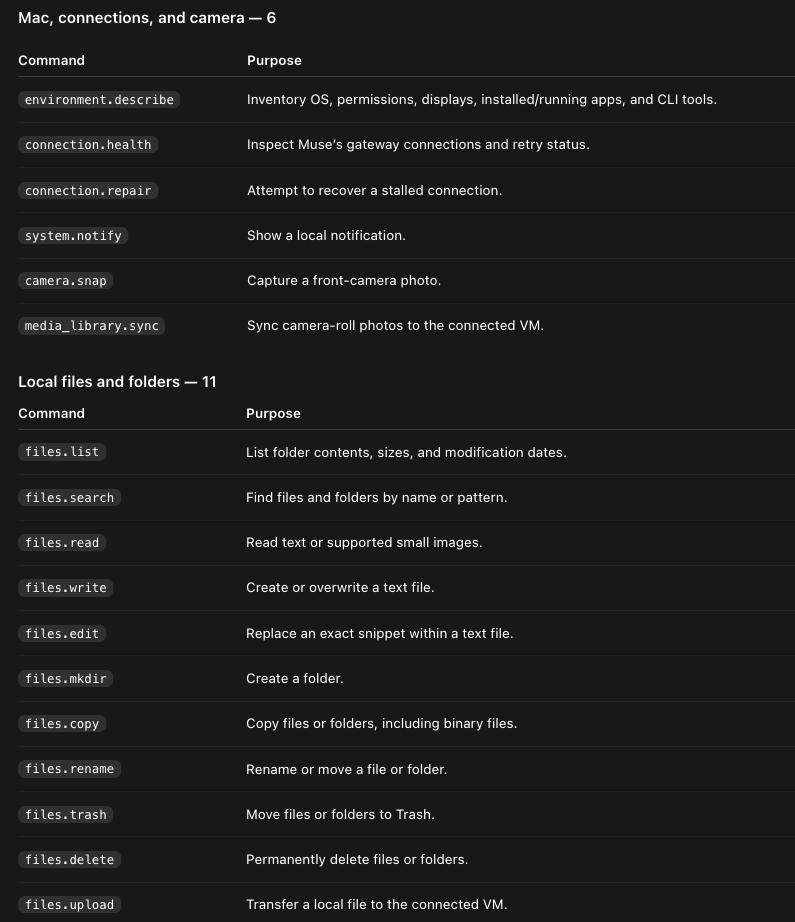
Once in control of Muse, an attacker can use the same features as the agent itself: take pictures with the front camera, view photos, read files and modify or delete them, show notifications… All told, the researcher counted more than 50 such commands. Source
What’s more, the attacker could route Muse’s voice traffic through their server, and quietly slip their own instructions in with the victim’s voice commands. They would pick up the Muse token along the way, so after the first successful attack they could keep their access to the agent and go on controlling it remotely. Meta has already released an update that fixes the vulnerability, but stories like this are far from rare in the AI world.
Meatbags to the rescue
Muse has an experimental feature that calls U.S. businesses on the user’s behalf: the agent can phone a company itself, ask for the details it needs, and then show a transcript of the call. But as Reuters and 404 Media discovered, Meta had also been testing a curious add-on to this feature with its own employees: handing the calls off to trained call-center operators. Fully automated calls weren’t getting the job done: people on the other end simply hung up as soon as they heard a robotic voice. Meanwhile, many Meta employees had no idea their requests were being handed off to real people.
After a barrage of criticism, Meta shut down the human operator experiment. Company representatives said it had been a mistake to run the experiment without warning and promised to improve the feature.
Protecting your privacy: which Muse settings to check
Meta really does process a huge amount of data when people use Muse: conversations with the chatbot, photos, metadata, uploaded and generated files… This also includes information from any third-party apps you’ve connected to the agent. Meta employees can access this data on an as-needed basis.
We recommend checking the following settings and turning off any features you don’t need:
System permissions on Mac
- Full Disk Access: full access to the disk and files on the computer.
- Automation: lets the agent take actions in local apps, such as sending messages or deleting notes.
- Notifications: lets the agent notify you when it finishes a task.
You can separately restrict access to apps that store their data on your Mac itself rather than in the cloud. Muse offers three modes for each app:
- Off: the agent can neither read data nor take actions.
- Read only: the agent can only read information, at your request.
- Read and interact: the agent can read information and take actions in the app.
Action confirmation
By default, Muse is supposed to ask you for permission before taking important actions in third-party apps. Still, relying on an AI’s judgment for, say, shopping or conversations with coworkers is hardly a good idea, so it’s best to limit its autonomy ahead of time. In Muse, go to Settings → Permissions → Connectors, and choose either Ask for some actions (the less secure option), or Always ask. In Manage permissions, review any permissions you’ve already granted under Connectors.
Meta notes that if you use a single account, Muse connects to Facebook, Instagram, and Threads automatically, and that unlinking them cuts off access but doesn’t delete the data already collected; you have to delete it manually.
Website access
You can set up Muse’s internet access in much the same way:
- Go to Settings→ Permissions → Web access defaults.
- Choose Ask for some actions to have Muse ask for permission before sharing your data or opening an unfamiliar site, or Always ask to have the agent ask before visiting any site at all.
We recommend choosing Always ask and using anti-phishing protection: there’s always a chance the agent will mistakenly decide to open a fake or suspicious site.
Training on your data
Meta claims that the user data used to train Muse is anonymized and stored without being linked to an account. Unfortunately, that doesn’t mean you can’t be identified from context: the emails, messages, documents, and calendars the agent works with contain names, email addresses, home addresses, and other details that give away your identity.
Meta also says it removes certain categories of personal identifiers before training the model. But the more information goes into training, the higher the risk that one day it will surface by accident in someone else’s conversation, or become public because of a bug. Sadly, even internal safety filters sometimes fail.
And, naturally, training is on by default. To turn off training, go to Settings → Data controls → Help improve our AI models and select Turn off.
Permissions on mobile devices
On mobile devices, we recommend reviewing the permissions you’ve given the Muse app. In your phone’s settings, limit its access to your contacts, photos, location, microphone, and camera. Also turn off AI training on your data.
On iPhone, open Settings → Privacy & Security, and check which categories Muse can access. On Android, check Settings → Apps → Muse → Permissions. You can turn off training separately in Muse → Settings → Data controls.
How to use AI agents safely
- Revoke permissions you don’t need, and don’t share sensitive data with the agent. The less information the agent can access, the less you risk if there’s a leak or a bug.
- Don’t delegate important decisions or actions to agents. Even if the agent asks you to confirm before it buys something or sends a message, check exactly what it’s about to do, and where. Otherwise, you might end up paying for a purchase of non-existing goods or services on a fake website. Muse’s creators themselves write that the agent isn’t fully protected against prompt injections — hidden malicious commands aimed at AI.
- Don’t run Terminal commands you don’t understand — especially if a website, email, or pop-up claims they’re needed for a “security check” or to “install an update”. That’s exactly how the ClickFix attacks work: they trick users into running a malicious command themselves. To protect yourself from malware and fake websites, install a comprehensive security solution on your devices.
- Keep the app that runs the agent up to date. The developers have fixed the vulnerability Patrick Wardle found, but security problems in AI turn up all the time.
More reading on AI security and privacy: